
06 · Credit
Tokens
Wallet credit: buying, spending, refunds, and failed payments.
- What is a Token?
- Where the wallet is
- Buying
- Pay with crypto
- Spend on a file
- Spending, refunds, admin
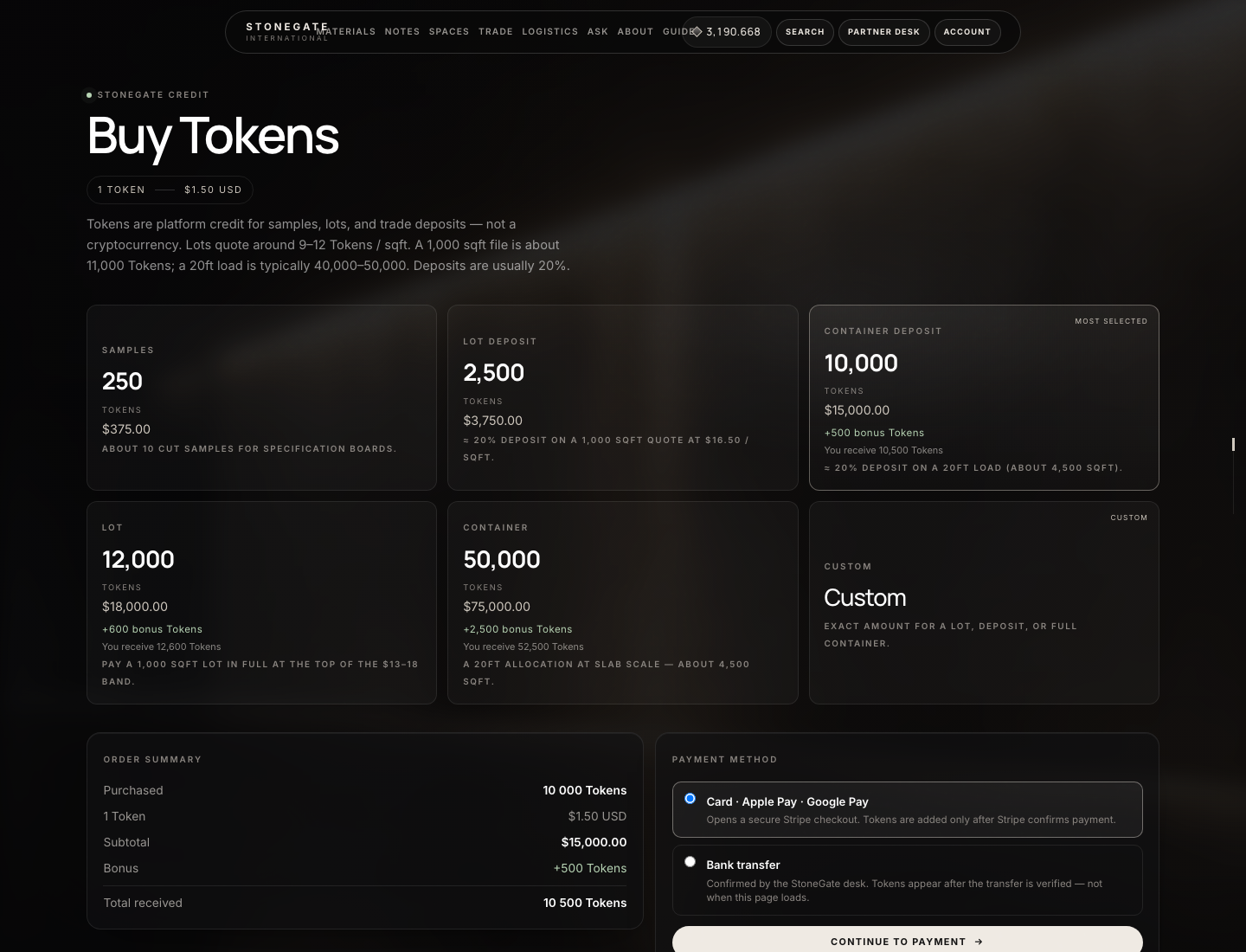
What the numbers mark
- Package size
- Card, USDT / crypto, or bank transfer
- Continue to payment
Customer or partner
Put money in the wallet
- Sign in. Open the header wallet chip, or Account → Wallet. That screen is the balance and the ledger — it does not take a card by itself.
- Click Buy Tokens (header, Account sidebar, or /buy-tokens).
- Pick a package or a custom amount. Choose card, USDT / crypto, or bank transfer — whichever methods the desk has on.
- Pay. Stripe and crypto credit the wallet when the payment is confirmed. Crypto opens a StoneGate invoice: pick coin, then network, send the exact amount to the unique address. Bank transfer stays pending until an admin opens Payments → Tokens → Purchases and confirms it.
- Come back to Wallet. You should see a credit row. Then you can pay a sample, a cart, or a trade deposit with Tokens.
You do not “configure” a wallet. Opening Account creates it at zero. Admins can credit or debit from Payments → Tokens → Wallets.
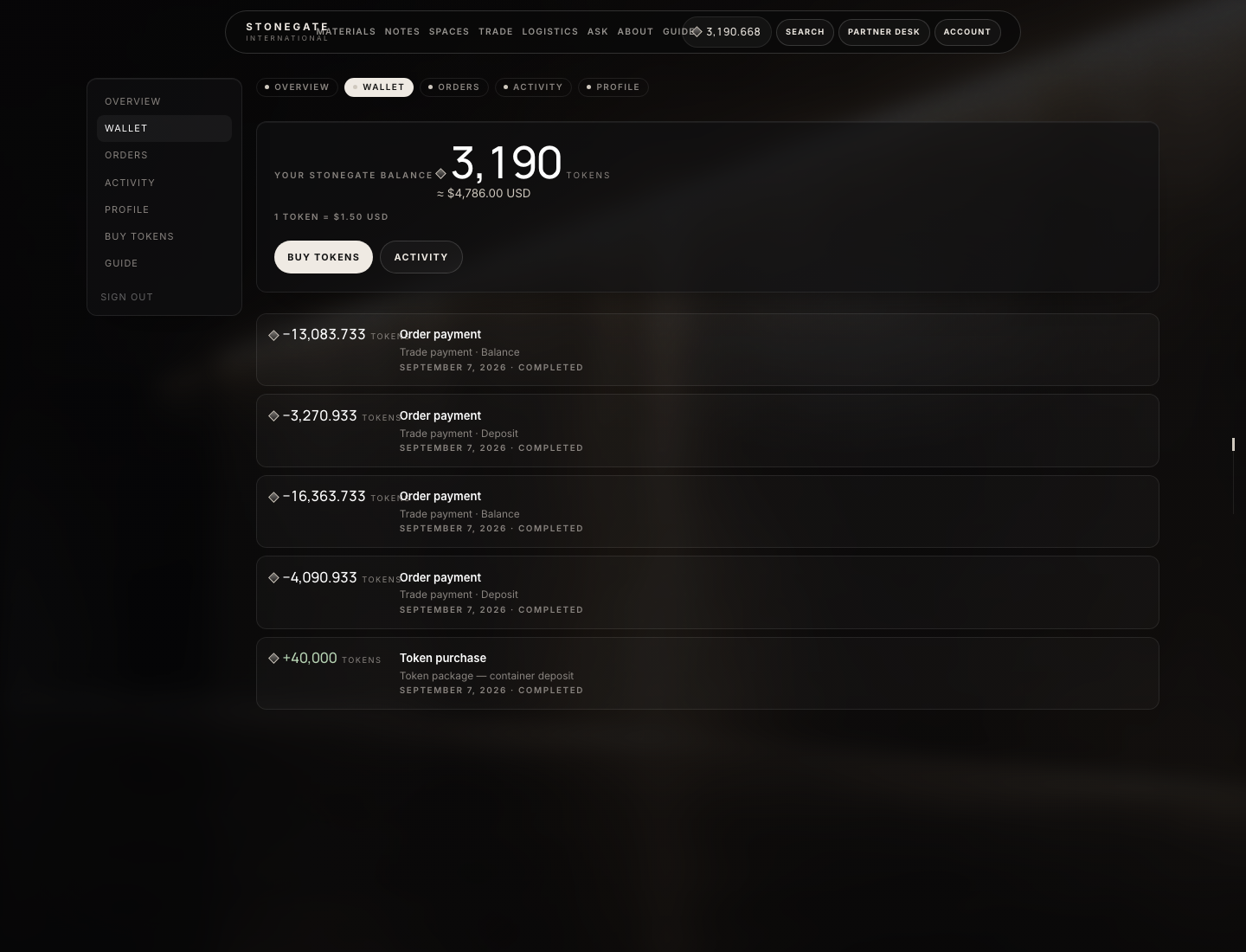
What the numbers mark
- Live Token balance
- Purchase credits and trade spends
What is a Token?
A Token is StoneGate wallet credit. 1 Token = $1.50 USD. The ledger stores millitokens (1 Token = 1,000 milli). There is a single balance — nothing is “reserved” in the wallet while a cart is open. If checkout fails, the balance is unchanged.
Where the wallet is
| Screen | Who | Job |
|---|---|---|
| Account → Wallet | Buyer | See balance and recent movements |
| Account → Activity | Buyer | Full ledger |
| Buy Tokens | Buyer | Add credit (card, USDT / crypto, bank) |
| Header chip | Buyer | Balance shortcut — not the order list |
| Payments → Tokens | Admin | Rate, packages, wallets, purchases, ledger |
| Payments → Crypto | Admin | HD wallet, invoices, withdraw |
Paying a trade deposit with Tokens happens on the order in Partner Desk, not on the Wallet page. Wallet only holds the credit.
Buying
- Guests can view packages. Paying requires an account — Sign in if the checkout says so.
- Stripe — hosted Checkout. Credit when the webhook confirms. Cancelled Checkout: wallet unchanged.
- USDT / crypto — Buy Tokens → USDT / crypto → StoneGate invoice. Choose coin, then network (USDT TRC-20 / ERC-20 / BEP-20, BTC, ETH, BNB, TRX). Send the exact amount to the unique HD address shown. Credit when
crypto:watch-paymentsconfirms enough network confirmations. Failed / expired: wallet unchanged. Do not Confirm bank on this row. - Bank transfer — follow the instructions on the page. Status pending until Admin → Payments → Tokens → Purchases → Confirm bank on that row. Without that click, the wallet stays empty.
- A webhook delivered twice does not double-credit (purchase lock + ledger idempotency). Starting checkout twice can create two pending rows; only confirmed ones credit.
- Min / max purchase, packages, sample Token price, welcome bonus, and “Enable bank transfer” are Admin → Payments → Tokens. 150 cents per token = $1.50. If bank is disabled, that method disappears from Buy Tokens.
Customer or partner
Pay for Tokens with crypto
- Sign in. Open /buy-tokens (or header / Account → Buy Tokens).
- Pick a package or custom amount. Choose USDT / crypto. That method is listed only when the HD wallet is on (Admin → Payments → Crypto). Binance API is not required.
- Continue. You land on the StoneGate pay page branded STONEGATE PAYMENTS.
- Choose the coin, then the network you will actually send on (wrong network = lost funds). A unique address and exact amount appear, with a QR code.
- Send from your wallet. Keep the page open or come back via the pending Token purchase → Open crypto invoice.
- The watcher (
crypto:watch-payments, every minute via scheduler) marks the invoice paid after the required confirmations. The Token purchase then credits the wallet. Return to Account → Wallet.
Cart checkout uses the same invoice: Checkout → Crypto. Trade deposits are Tokens or card on the desk — not this pay page. Do not Confirm bank on a crypto row in Purchases.
Customer or partner
Spend Tokens on a real file
- Sample: material page → sample form → submit. Debit is immediate if the wallet covers the sample Token amount.
- Cart: Checkout → pay with Tokens. Must be signed in. Debit, cart clears, order
confirmedwithpaid_at. - Trade deposit / balance: Partner Desk → Orders → the
SG-…file. Only installments with statusdueshow buttons. Deposit is due on accept. Balance stayspendinguntil the deposit is paid — do not retry Card on a pending row. Pay with Tokens or Card (desk rolescompany_adminorfinanceonly). Not on the Wallet page. If Tokens fail for insufficient balance, you are sent to Buy Tokens; the installment stays due — buy, then return to the order and pay again.
Spending, refunds, admin
- Debit and the payment confirmation are one database transaction. Failed pay = no debit.
- Shop Token order: Admin → Shop → Orders → Refund tokens.
- Trade Token spend: Admin → that order → Cancel trade order. Inventory releases and milli return. Card money is not returned here — refund in Stripe / the gateway.
- Succeeded Token purchase: Purchases → Reverse to wallet (reason required) only if those Tokens are still sitting in the wallet.
- Admin credit/debit: Wallets → open the email → Tokens field (+100 or -25) + reason → Record adjustment. Always writes a ledger row. ID column is the User ID for Assign user.
- No negative balance. Concurrent spends lock the wallet; the second request fails.
- Ignored mill email does not auto-refund. Cancel the file if the lot should unwind.