
Canonical flow
How a file actually moves
StoneGate is a trade desk for Turkish marble and granite. There are two tracks that share the same order book: a storefront checkout for samples and simple purchases, and a B2B quote file for container lots. The sequence below is the B2B track — the one Partner Desk is built for. Each step opens the chapter that owns it.
Start here
Where Wallet, Orders, and the desk actually are
| You want | Open this |
|---|---|
| Token balance | Account → Wallet (header chip is the same balance) |
| Buy credit | Buy Tokens |
| Samples / cart | Account → Orders |
| Company quotes and lots | Partner Desk |
| Give a lot to the mill | Admin → Shop → Orders → Mark in work & send |
Full click paths: Getting started and Orders.
The whole file
Give a company order to production
This is the only sequence that starts mill work. Wallet and Account → Orders do not do it.
- The buyer registers (Sign in → Create account), then applies on Partner Program — or you already have their company.
- Admin: Trade → Ops → Partner applications → company name. Set status
approved. Assign user (User ID from Payments → Tokens → Wallets). Solo contact who must accept and pay: desk rolecompany_admin. - They sign in. Header shows Partner Desk. They also buy Tokens if they will pay the deposit from the wallet: Buy Tokens.
- They open a material → Submit RFQ. No payment yet. File number
RFQ-…. - Admin: Trade → RFQs (or Ops) → open the RFQ → Draft quote → check prices → Send quote. Sending reserves stock.
- Partner Desk → Quotes → Accept quote. Order
SG-…is created. Deposit is due immediately. - Partner pays the deposit on the order (Tokens or card). The balance stays pending until the deposit clears, then it becomes due.
- Admin: Shop → Orders → that
SG-…file → fill ops email and mill email → Mark in work & send. That is “give it to the company / mill”. - Later: Trade → Containers → New container → Attach order (creates
SHP-…). Advance statuses on Trade → Shipments. Partners only read the timeline you stamp.
- 01 Specify Partner Partner or customer submits an RFQ from a material page.
- 02 Quote StoneGate StoneGate drafts landed pricing and sends it to Partner Desk.
- 03 Accept Partner The partner accepts. An order is created. Inventory is allocated.
- 04 Deposit Partner The partner pays the deposit with Tokens or card. The balance then becomes due.
- 05 Balance Partner The remaining installment is paid. The file is marked paid in full.
- 06 In work StoneGate Admin marks the order in work. Customer and mill/ops inboxes are emailed.
- 07 Container StoneGate Lots are allocated to a container. A shipment is planned.
- 08 Transit Logistics The desk advances port, customs, and delivery milestones.
- 09 Delivered Partner The partner can reorder the same lines as a new RFQ.
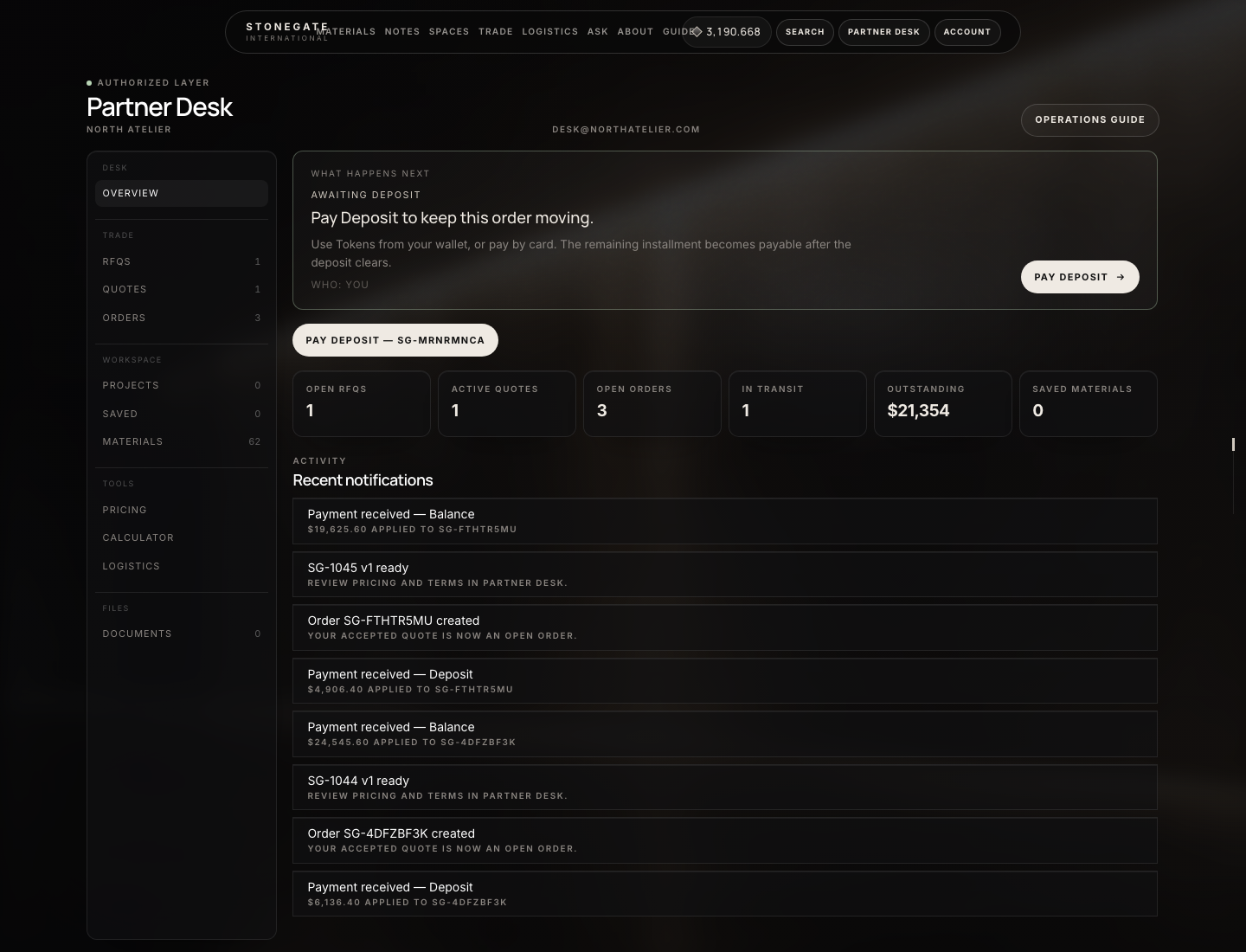
What the numbers mark
- What happens next — the current responsible party
- Open RFQs, quotes, and orders
- Desk navigation: Trade, workspace, tools, files
Chapters
01
Getting started
How StoneGate is organized, who you are in the system, and where you work.
02
Orders
From a specification request to a closed file — the real lifecycle.
03
Partners
Partner Desk: quotes, deposits, documents, and what you do next.
04
Customers
Account, materials, samples, Tokens, and tracking.
05
Mills & production
How mill partners are notified today — and what is not a login.
06
Tokens
Wallet credit: buying, spending, refunds, and failed payments.
07
Logistics
Containers, shipments, and the statuses the desk actually advances.
08
Administration
What each admin screen is for, what is safe, and what cannot be undone.
09
Troubleshooting
Stuck orders, failed payments, declined quotes, and missing Tokens.