
03 · Trade file
Partners
Partner Desk: quotes, deposits, documents, and what you do next.
- If you open Partner Desk today
- Every desk panel
- Company roles on the desk
- Open Partner Desk for a company
- Quotes, pay, documents, reorder
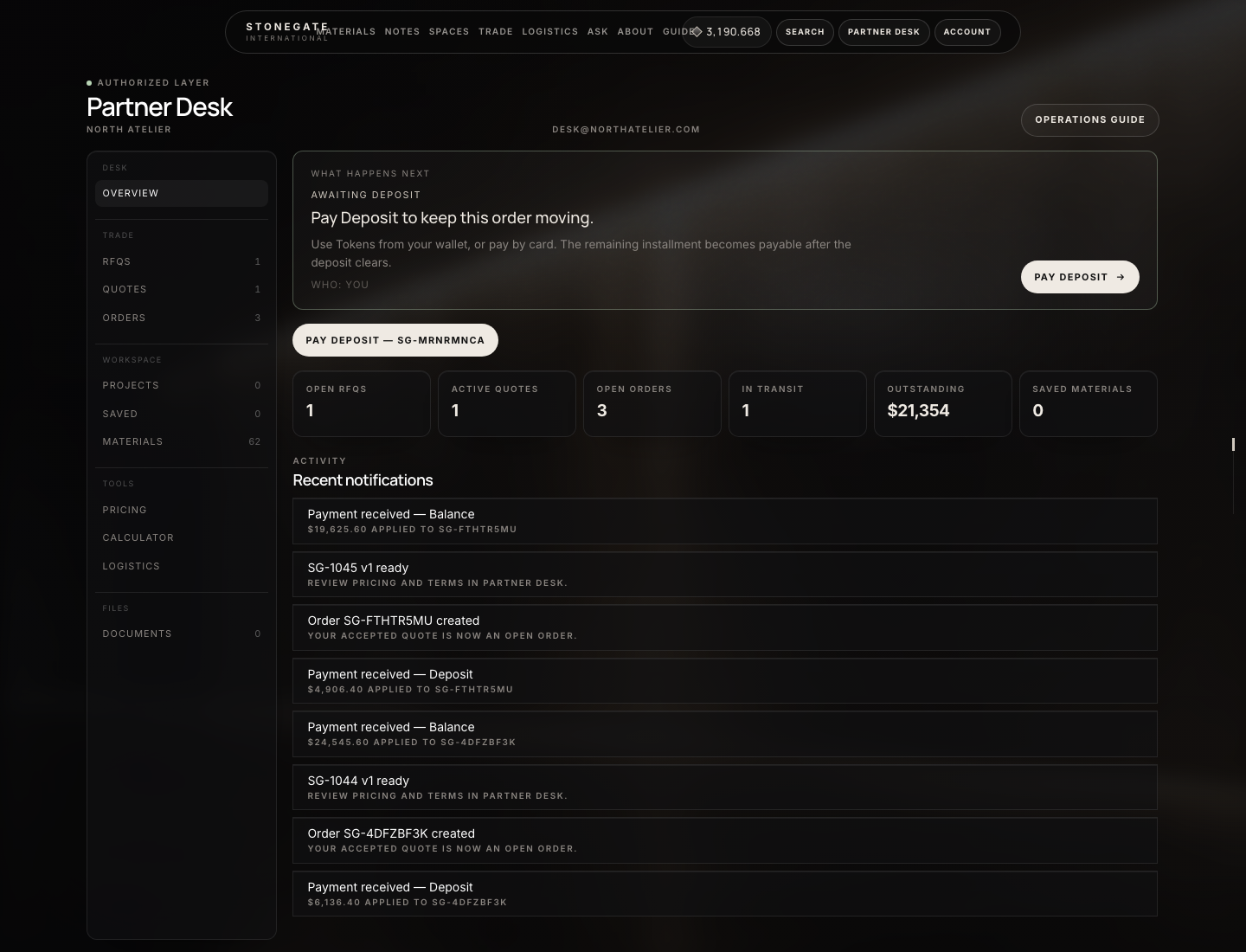
What the numbers mark
- What happens next
- RFQs, Quotes, Orders
- Open orders and outstanding
Partner
Run a file from the desk
- Header → Partner Desk. If you do not see it, you are still a customer — StoneGate has not assigned you to an approved company. Sign out and in after they assign you.
- Read What happens next on Overview. It names the status, who must act (You or StoneGate), and the button. Follow that before opening random lists.
- RFQs — submitted requests (
RFQ-…). You wait until StoneGate sends a quote. You cannot quote yourself. - Quotes — open a
sentquote. Check material, sqft, freight, deposit, validity date. Print or download PDF if you need a file. Then Accept, Decline, or Request changes. - Orders — after accept, open the
SG-…file. Pay the deposit, then the balance when it becomes due. Tokens: Account → Wallet / Buy Tokens first. Pay buttons require desk rolecompany_adminorfinance. - When the desk books a shipment, open it from the order. You cannot change port, customs, or delivery. Download documents as they appear. After delivery, Reorder creates a new RFQ from the same lines.
You cannot Mark in work. You cannot approve your own partner application. You cannot see mill landed cost. You cannot advance shipment status.
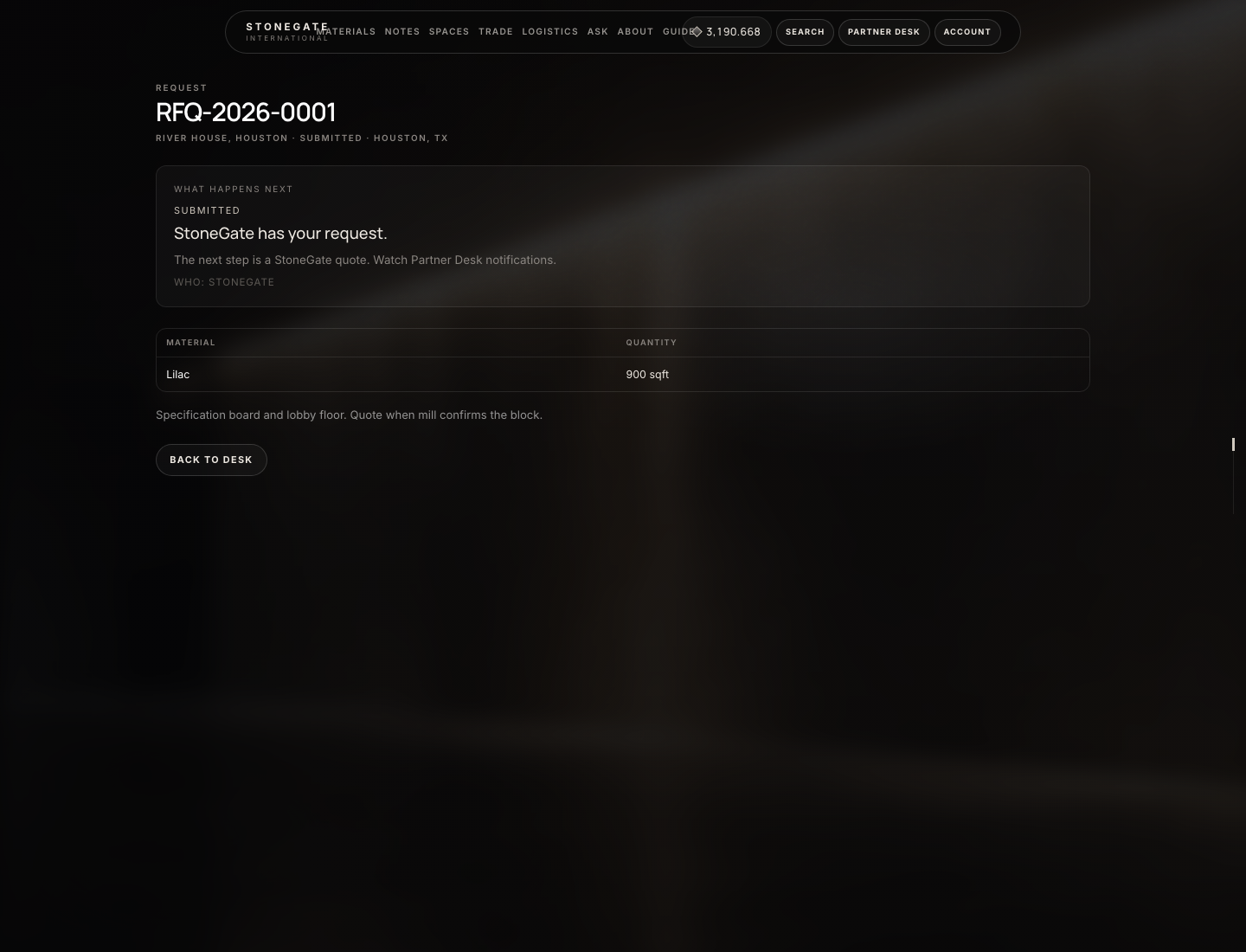
What the numbers mark
- RFQ number and project
- Requested material and sqft
Every desk panel
| Panel | What it is | What you do |
|---|---|---|
| Overview | Next step + counters | Read who must act today |
| RFQs | Quote requests | Open a file; wait for StoneGate |
| Quotes | Sent / negotiation quotes | Accept, decline, or request changes |
| Orders | Trade lots SG-… | Pay deposit then balance; track shipment |
| Projects | Named jobs you create | Name, location, client, est. sqft → Create. Open a project to group materials / RFQs. Does not create an order. |
| Saved | Favorite stones | Bookmark from a material page. Empty until you save. |
| Materials | Catalog inside the desk | Open a stone → same RFQ form as the public lot page |
| Pricing / Calculator / Logistics | Planning tools | Estimates only — they do not book a carrier, reserve stock, or create SG-… |
| Documents | Files the desk uploaded | Download. Empty until Admin → Trade → Documents with visibility Partner (or Public) |
| Registry | Staff catalog edits | Visible only when a site admin is on the desk. Partners never see it. |
Company roles on the desk
Admin sets this on Trade → Companies → Assign user. It is not the same as the site login role (partner).
| Desk role | Can accept quotes | Can pay | Notes |
|---|---|---|---|
company_admin | Yes | Yes | Solo contact who must accept and pay. |
buyer | Yes | No | Accept / decline / RFQ. Pay with Tokens / Card buttons are hidden. |
finance | Yes | Yes | Pays installments; can also accept quotes. |
project_manager | No | No | Projects, materials, documents, RFQ. No Accept, no Pay. |
viewer | No | No | Look only. Missing buttons look like a bug — they are not. |
If Accept quote is missing: you are a viewer or project manager, or the quote is still draft, expired, already accepted, or not the current version. If Pay with Tokens / Card is missing: your desk role is not company_admin or finance, or the installment is still pending (pay the deposit first).
Open Partner Desk for a company
The partner cannot switch this on. Click path for the buyer:
- Create account. Open Account → Wallet once.
- Header → Partner Access (Partner Program) → Request credentials / the apply form: Company, Name, Email, Role, annual volume, website, U.S. delivery, Message → Submit application. Flash: application received. Still no desk.
- Wait. StoneGate: Trade → Companies → status
approved→ Assign user (User ID from Payments → Tokens → Wallets). Full admin clicks are in Administration. - Sign out and in. Header shows Partner Desk.
suspendedcompanies are kicked back to Partner Access.
Quotes, pay, documents, reorder
- Accept quote — confirm dialog, then order
SG-…exists and the deposit is due. You cannot accept twice, accept an expired quote, or accept a draft. - Decline quote — reason of at least eight characters. Reserved material is released. StoneGate is notified.
- Request changes — describe qty / price / delivery. Status becomes negotiation. Wait for a new version (Create next version on the admin quote). Accept the current version only.
- Pay — Partner Desk → Orders → the
SG-…file. Payment schedule: deposit isdueimmediately. Balance stayspendinguntil the deposit is paid, thendue. On a due row, Pay with Tokens or Card (onlycompany_admin/finance). Tokens come from Account → Wallet / Buy Tokens — the desk does not sell them. Short wallet redirects to Buy Tokens; the installment stays due. Card cancel returns you to the desk unpaid. - Documents — Desk → Documents, or the Documents block on the order. Empty until admin uploads under Trade → Documents with visibility Partner (or Public),
App\Models\Order+ numeric order ID. - Reorder (new RFQ) — on the order after delivery, or any trade order with a quote. Submits a new RFQ from the same lines. It is not a duplicate of the old
SG-…. Wait for a new quote.