
02 · Trade file
Orders
From a specification request to a closed file — the real lifecycle.
- Creating a trade order
- Give a company order to production
- Shop & sample orders
- Accepting and declining
- Production, completion, cancellation
What the numbers mark
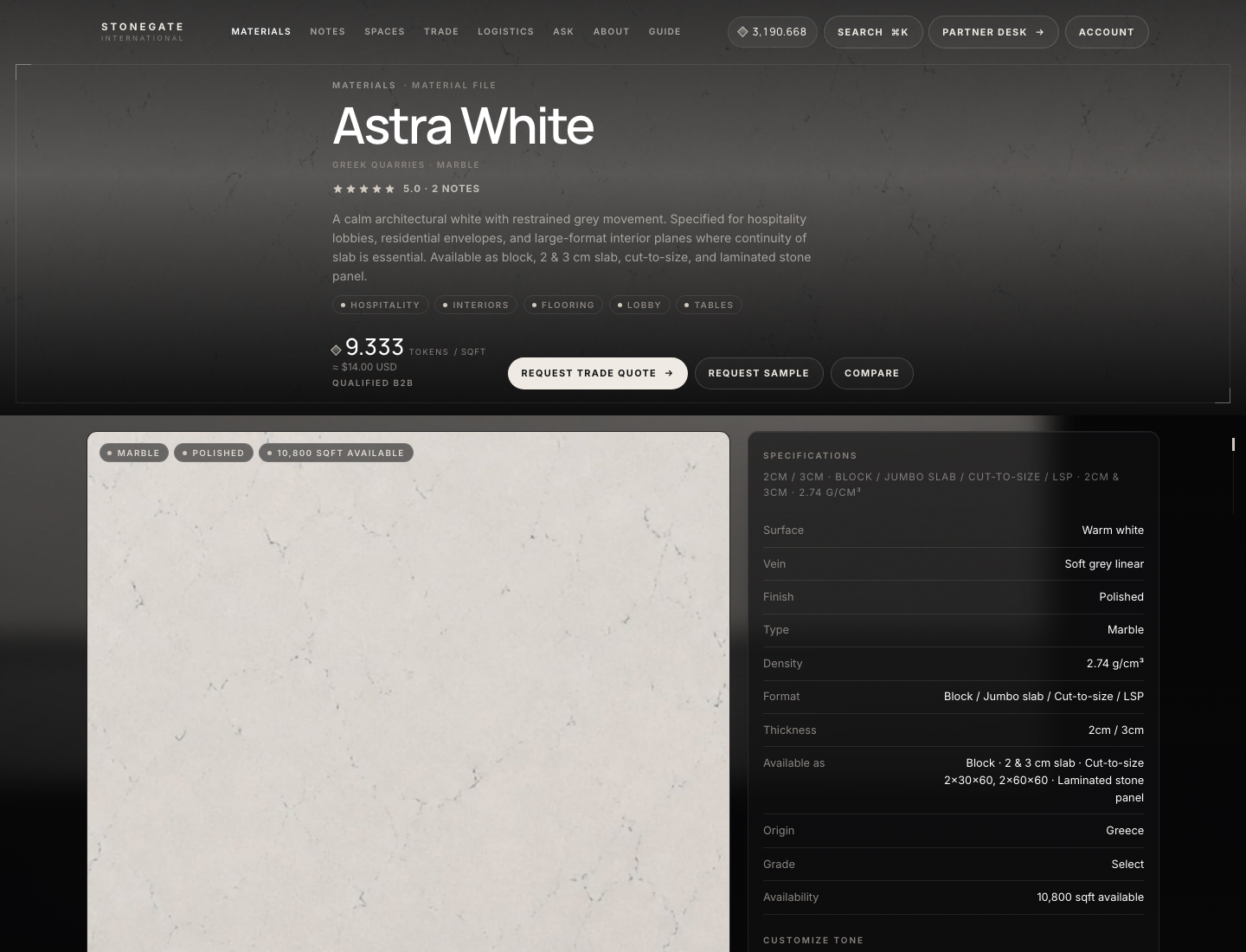
- Request Trade Quote — RFQ form below
- Request sample — Tokens leave the wallet
Partner, then StoneGate, then partner again
Create a trade order
- Sign in as the company’s partner. Header → Materials → open a stone. Form Request trade quote: name, work email, company, project, city / destination, state, ZIP, phone, quantity sqft (required). Delivery: Door or Port. Port can set who handles import. Loads above the legal limit (Trade → Settings, default 21.5 t) require an overweight permit file. Notes optional. Submit RFQ. You do not pay here. Inventory is not reserved yet. File
RFQ-…under Partner Desk → RFQs. - Admin opens Trade → RFQs (also listed on Trade → Ops). Clicks Draft quote, checks unit / freight / handling / delivered total, then Send quote. Sending reserves inventory. How those lines are built: Administration → How delivered prices are calculated.
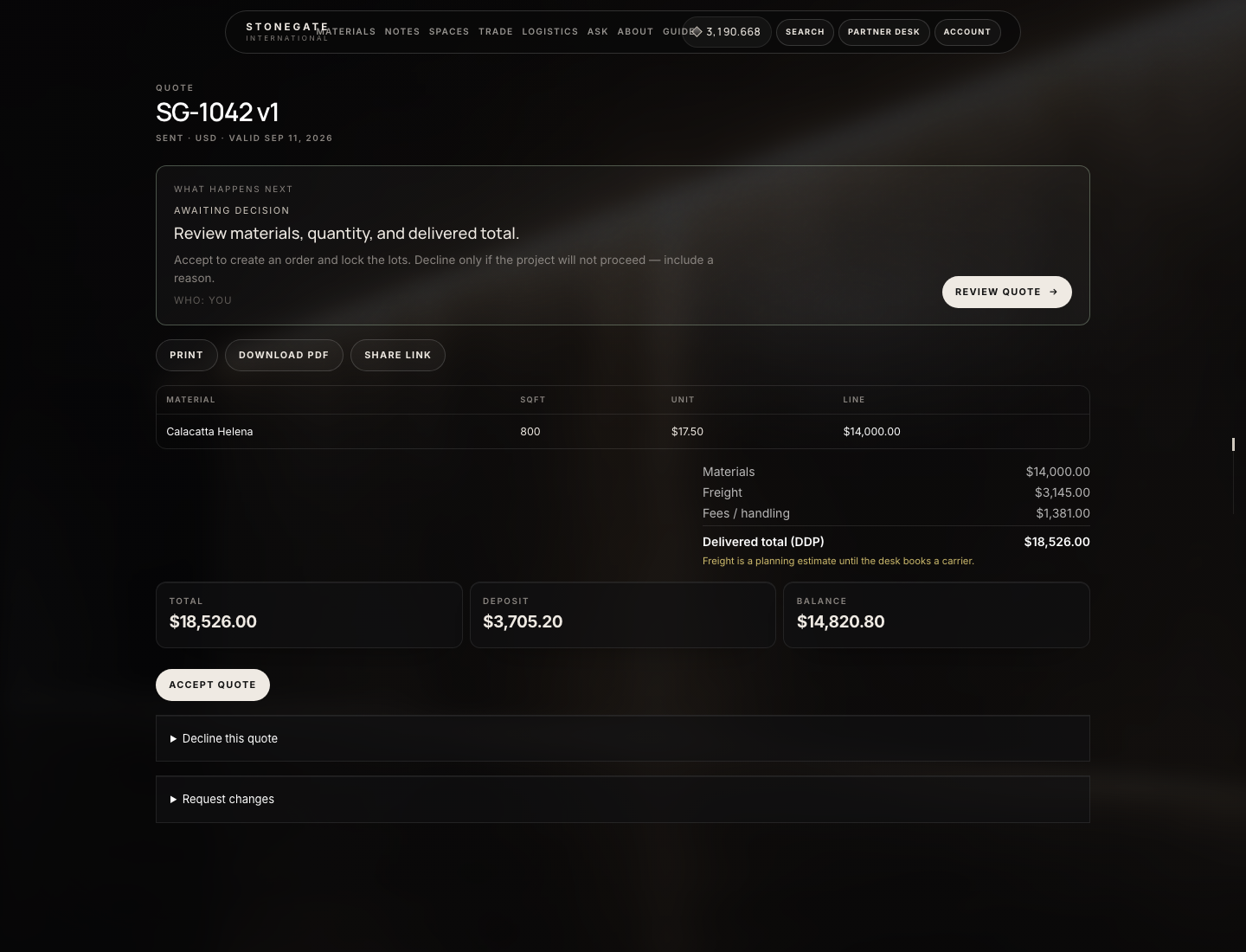
- Partner Desk → Quotes. Open the sent quote. Check material, sqft, freight, deposit, validity date.
- Click Accept quote. The system creates order
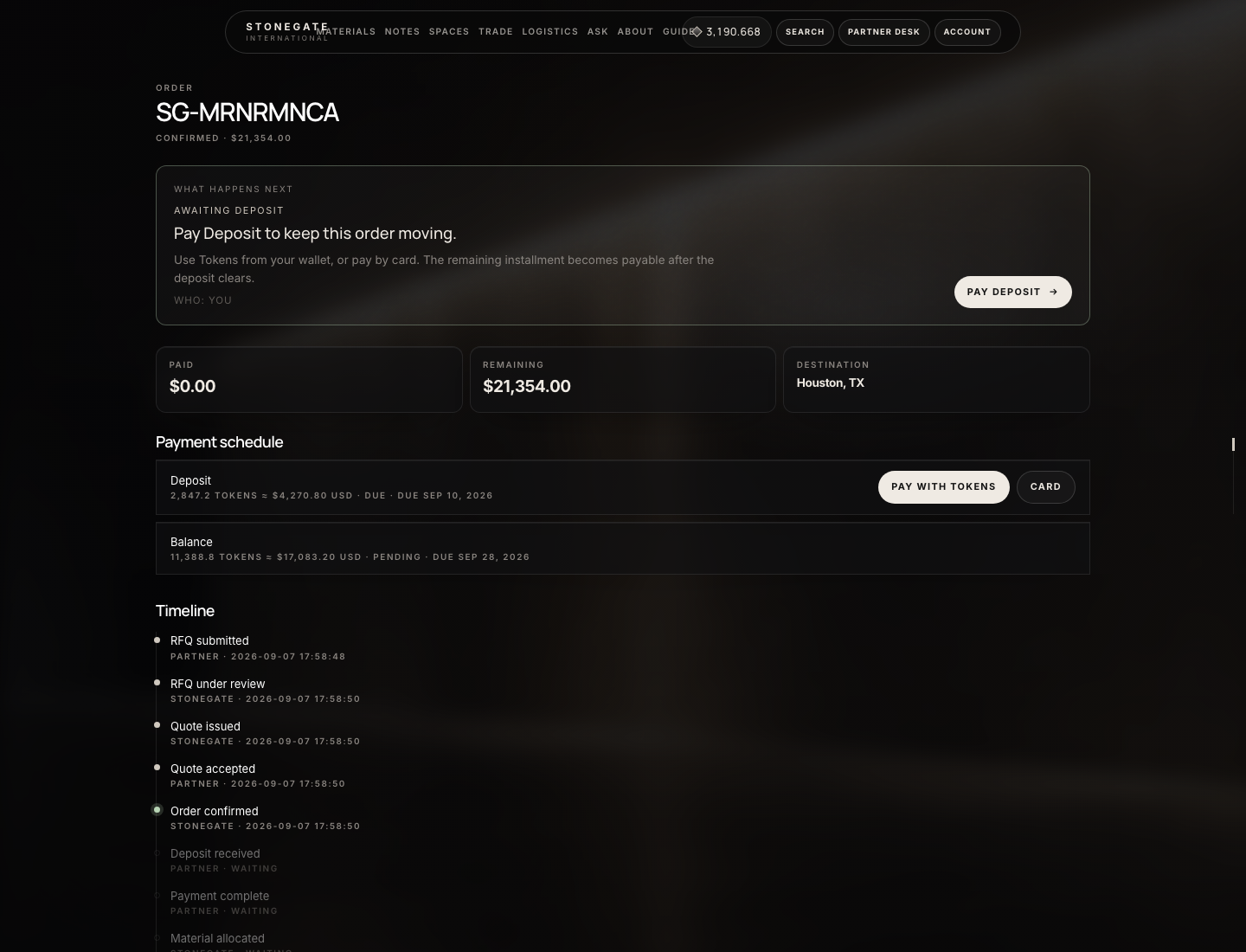
SG-…, allocates inventory, and builds a deposit + balance schedule. - On that order, pay the deposit with Tokens or card. The balance stays
pendinguntil the deposit is paid, then it becomesdue.
What the numbers mark
- What happens next — Accept quote
- Material, sqft, unit, delivered line
- Accept, Decline, or Request changes
What the numbers mark
- What happens next — pay the deposit
- Paid / remaining
- Pay with Tokens or card
Creating an order (trade)
Trade orders are not created from the cart. They only exist after a partner accepts a sent quote.
| Quote status | Partner can |
|---|---|
draft | Nothing — admin has not clicked Send quote |
sent / negotiation, current, not expired | Accept, Decline (≥ 8 characters), Request changes |
expired or superseded | Wait for Extend or a new version |
accepted | Pay the order that already exists |
rejected | File is dead unless the desk quotes again |
Accept allocates inventory and builds deposit + balance (rates from Trade → Settings, default 20% / 80%). Deposit is due immediately. Balance stays pending until the deposit is paid, then due.
Admin
Give this order to the mill
Do this after the deposit is in. The mill has no login. Email is the handoff.
- Open Shop → Orders (or the unpaid/in-work card on Trade → Ops). Open the
SG-…file. - On the right, card In work & partner emails.
- Operations email — the StoneGate inbox that should receive the brief (default from config).
- Partner / mill email — the factory or ops contact. Pre-filled from the company if it has an email.
- Optional note. Leave Email customer and Email operations & partner checked unless you are only stamping the file.
- Click Mark in work & send. Shop status becomes
processing. Customer and mill/ops get the brief. That is the job going to the company.
If the flash says “No ops emails sent — check addresses”, the file is still marked in work, but nobody was mailed. Fix SMTP and the addresses, then send again from the same card.
Creating an order (shop / sample)
- Sample — material page, block Ship a sample to the office. Must be signed in (guests get Create account / Sign in). Name, email, company, city, notes. Button shows the sample Token price (Admin → Payments → Tokens → Sample tokens). Wallet must cover it. Debit on submit. Email + Account → Orders. Short wallet: Buy Tokens, then submit again.
- Cart Token pay — add lines → Checkout → pay with Tokens. Must be signed in. Debit, cart clears, shop status
confirmed,paid_atset. - Cart card / crypto — starts
pending. Paid when the webhook (or crypto watcher) confirms. Do not Mark in work on a still-pending shop file. - These are not Partner Desk lots. They live under Account → Orders. Public tracking is the link in the confirmation email (
/order/…). Admin types tracking number / URL / estimated delivery on Shop → Orders → Order Status when setting shipped or in_transit, then Save & Send. - Admin can still Mark in work on a shop file if ops should be emailed. That does not create a container lot. For mill lots use the trade path above.
Receiving, reviewing, accepting, rejecting
The buying partner does this — not the mill. Desk role must include quotes: company_admin, buyer, or finance. Viewer / project manager will not see Accept.
- Partner Desk → Quotes → open the sent file. Read What happens next. Check material, sqft, unit, freight, duties, delivered total, deposit, balance, validity date. Landed / factory cost is not on this page.
- Print (new tab), Download PDF, or Share link if someone off-desk must see the numbers.
- Accept quote — confirm dialog: an order is created and the deposit becomes due. You cannot accept twice, accept a draft, accept an expired quote, or accept a superseded version.
- Decline this quote (open the fold) — reason, at least eight characters → Decline quote. Reserved material is released. StoneGate is notified. The RFQ does not become an order.
- Request changes — message (required); optional qty sqft, target $/sqft, delivery target → Submit change request. Status becomes
negotiation. Wait. Admin: quote page → Create next version → Send quote. Accept only the current sent version.
Production, completion, cancellation
- After deposit: Mark in work (emails mill). See Mills & production.
- Then Trade → Containers → New container → attach this order (creates shipment). Advance statuses on Trade → Shipments. See Logistics.
- Admin order, card Cancel trade order: reason → Cancel order → confirm. Releases inventory. Returns Tokens if they were spent on this file. Does not refund Stripe — do that in the gateway.
- Shop Token refund without cancelling the trade file: header Refund tokens + reason. Only when payment method is Tokens and the order is not already refunded.
- Delivered: shipment status
deliveredalso sets shop status delivered. Optional shopcompletedis Order Status → Save & Send. Partner Desk → that order → Reorder (new RFQ) submits a new RFQ from the same lines. It is not a clone ofSG-….