
07 · Desk & mills
Logistics
Containers, shipments, and the statuses the desk actually advances.
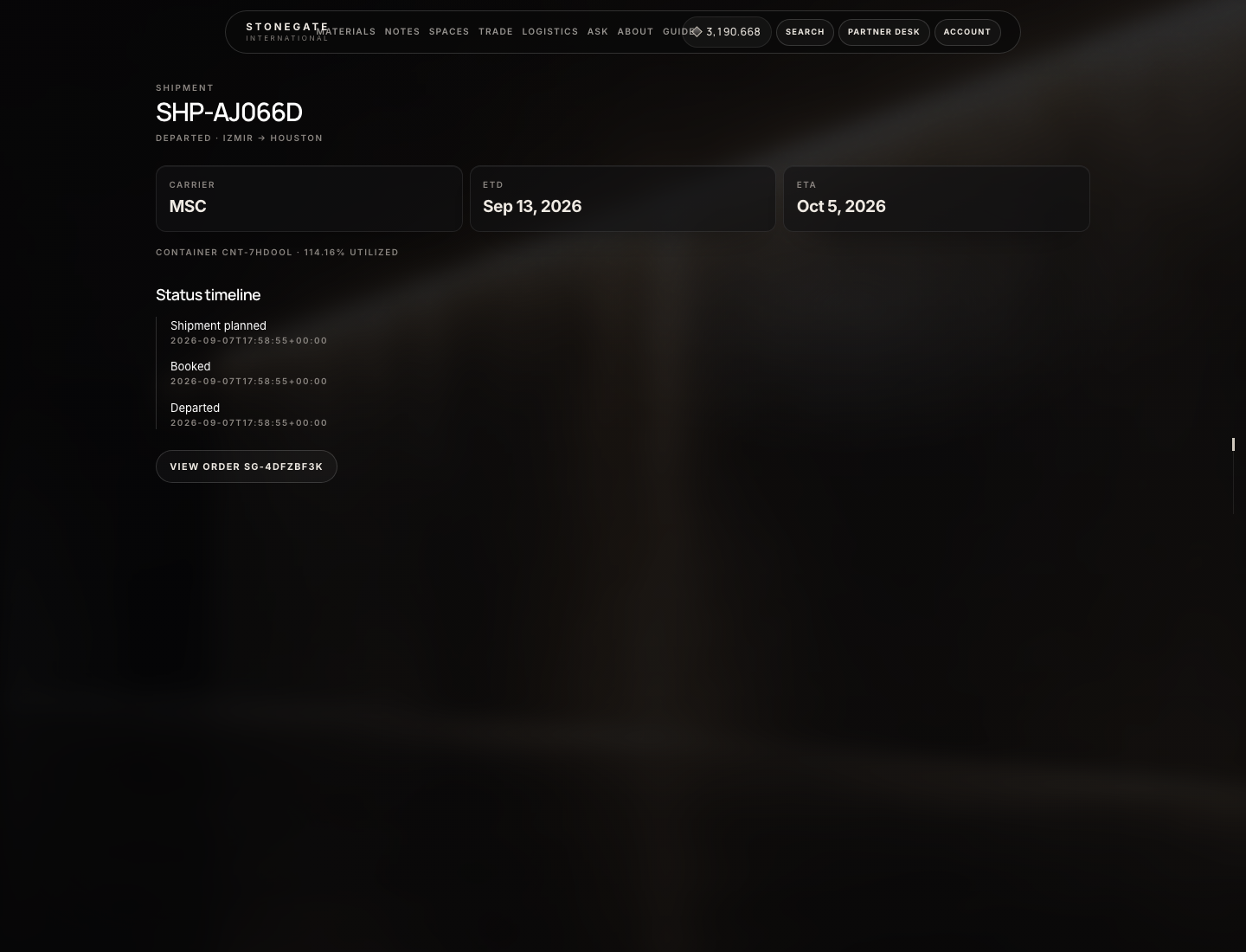
What the numbers mark
- Shipment number and status
- ETA and milestones the desk recorded
Admin
Create the container and the shipment
Do this after the lot is paid (or at least allocated). Partners cannot create shipments.
- Admin → Trade → Containers → New container.
- Fields: Container number (optional — blank becomes
CNT-…), type 20ft or 40ft, Origin, Destination, Carrier, Port, ETD, ETA, notes. Capacity kg is optional (defaults from Trade → Settings payload). - Attach order — select the
SG-…trade order (the dropdown lists files that have a quote). This is the important field. On Create the system: puts the order lines on the container, sets order fulfillment toallocated, sets the container status toloadingif it was planned, and creates shipmentSHP-…at statusplanned(order fulfillmentshipment_planned). - If you create a container with no order, you get an empty box and no shipment. There is no separate “New shipment” button. Attach the order when you create the container.
- Open Trade → Shipments (or the Shipments card on the container) → the
SHP-…file.
Advance the shipment
Open Trade → Shipments → the SHP-… file (or the Shipments card on the container). Choose status, optional note, Update status. Each update appends a timeline row the partner can read. You can pick any listed status — there is no forced “next only” lock, but stamp them in commercial order so the partner timeline makes sense.
planned— created with the container.booked— carrier booking exists.loading— cargo going in.departedorin_transit— order fulfillment becomesin_transit.at_port→customs→arrived→out_for_delivery.delivered— fulfillmentdeliveredand shop statusdelivered.cancelled— if the move is aborted. That does not cancel the trade order or return Tokens. Cancel the order separately on Shop → Orders if the file should die.
There is no “completed” click on the shipment. If you need shop status completed, set it on Admin → Orders → Order Status → Save & Send. Desk tools Pricing / Calculator / Logistics estimate door vs port — they do not book a carrier or create SHP-….
What the partner sees
- Partner Desk → Orders → the file → Track shipment (or the shipment number). ETA and timeline stamps only. No Update status.
- Shop orders (samples / cart) are different: Admin types tracking number and URL on the order; the customer’s email link
/order/…shows that. Do not confuse the two. - Documents (B/L, packing list): upload under Trade → Documents with visibility Partner, linked to the order ID. They appear on Desk → Documents.