
01 · Orient
Getting started
How StoneGate is organized, who you are in the system, and where you work.
- How StoneGate works
- Wallet, Orders, Partner Desk
- Roles
- Your workspace
- Turn the desk on
- Navigation & notifications
How StoneGate works
StoneGate International is a wholesale trade desk for Turkish marble and granite. There are two tracks that share the same order book:
- Shop — samples and cart checkout. Paid on the spot. Lives under Account → Orders.
- Trade — RFQ → quote → accept → deposit → mill → container → shipment. Lives under Partner Desk. This is the track for a company lot.
There is no mill login. Production is started when an admin clicks Mark in work & send on the order. That emails the operations inbox and the mill.
Everyone
Where Wallet, Orders, and the desk actually are
| You want | Open this | What it is |
|---|---|---|
| Token balance | Header wallet chip → Wallet or Account → Wallet | Prepaid credit. 1 Token = $1.50 USD. Nothing is reserved while a cart sits open. |
| Buy credit | Buy Tokens | Packages, custom amount, card / crypto / bank. Credit lands only after payment is verified. |
| Shop / sample orders | Account → Orders | Cart and sample files. Public tracking is the link in the confirmation email. |
| Company quotes & lots | Partner Desk | RFQs, quotes, trade orders, documents, shipments. Only after an admin assigns you to an approved company. |
| Put a lot in production | Admin → Shop → Orders on that file | Button Mark in work & send. Not on Partner Desk. Not a mill portal. |
Wallet, Orders, Partner Desk
These are three different screens. Mixing them up is the usual reason a file “isn’t there”.
Wallet is money sitting in StoneGate: credits from Buy Tokens, debits when you pay a sample, a cart, or a trade installment with Tokens. It does not list mill jobs.
Account → Orders is every shop order on your user, plus trade orders that happen to be linked to you. Partners still work trade files on the desk — that is the intended surface.
Partner Desk appears in the header only when your user role is partner and the company status is approved. Applying on the Partner Program page does not open it.
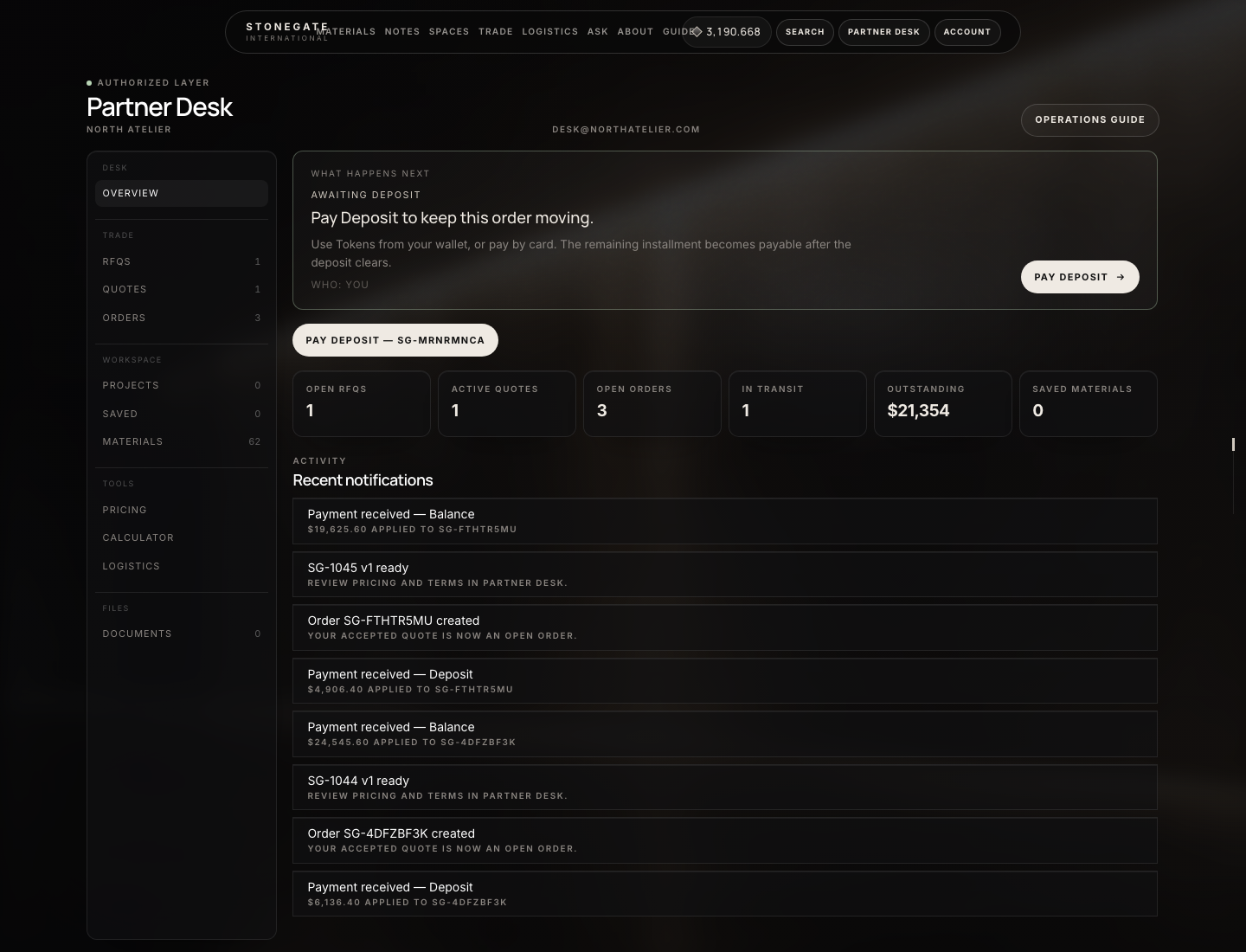
What the numbers mark
- What happens next — who must act today
- RFQs, Quotes, Orders
- Open files and outstanding balance
Roles that exist in the application
| Role | Who | Workspace |
|---|---|---|
| Customer | Anyone who registers | Account, wallet, orders, catalog, checkout |
| Partner | Assigned by admin to a company | Partner Desk, quotes, trade orders, documents |
| Admin / Editor | Staff | Admin panel. Admins also pass Partner Desk. |
| Scout | Affiliate school program | Separate school portal — not part of stone trade |
Applying on the Partner Program page creates a pending company and a contact inquiry. It does not grant Partner Desk. An admin must set the company to approved and Assign user.
Your workspace
Three surfaces. Mixing them up is the usual reason a file “isn’t there”.
- Account (every signed-in user) — Overview, Wallet, Orders, Activity, Profile. Wallet is the Token balance. Account → Orders is samples and cart checkouts, plus any trade file linked to this user. It is not Partner Desk.
- Partner Desk (login role
partneron anapprovedcompany) — left rail: Overview; Trade (RFQs, Quotes, Orders); Workspace (Projects, Saved, Materials); Tools (Pricing, Calculator, Logistics — estimates only); Files (Documents). Registry appears only when an admin is on the desk. Click a rail item; it does not open a new site. - Admin — Trade → Ops is the morning board. Trade also has RFQs, Quotes, Companies, Containers, Shipments, Documents, Settings. Shop → Orders is every file including
SG-…. Payments → Tokens is wallets, purchases, ledger. Payments → Crypto is the HD processor. Email → Mail SMTP is required before Mark in work can deliver.
The mill has none of these. Production is an email from Mark in work. See Mills & production.
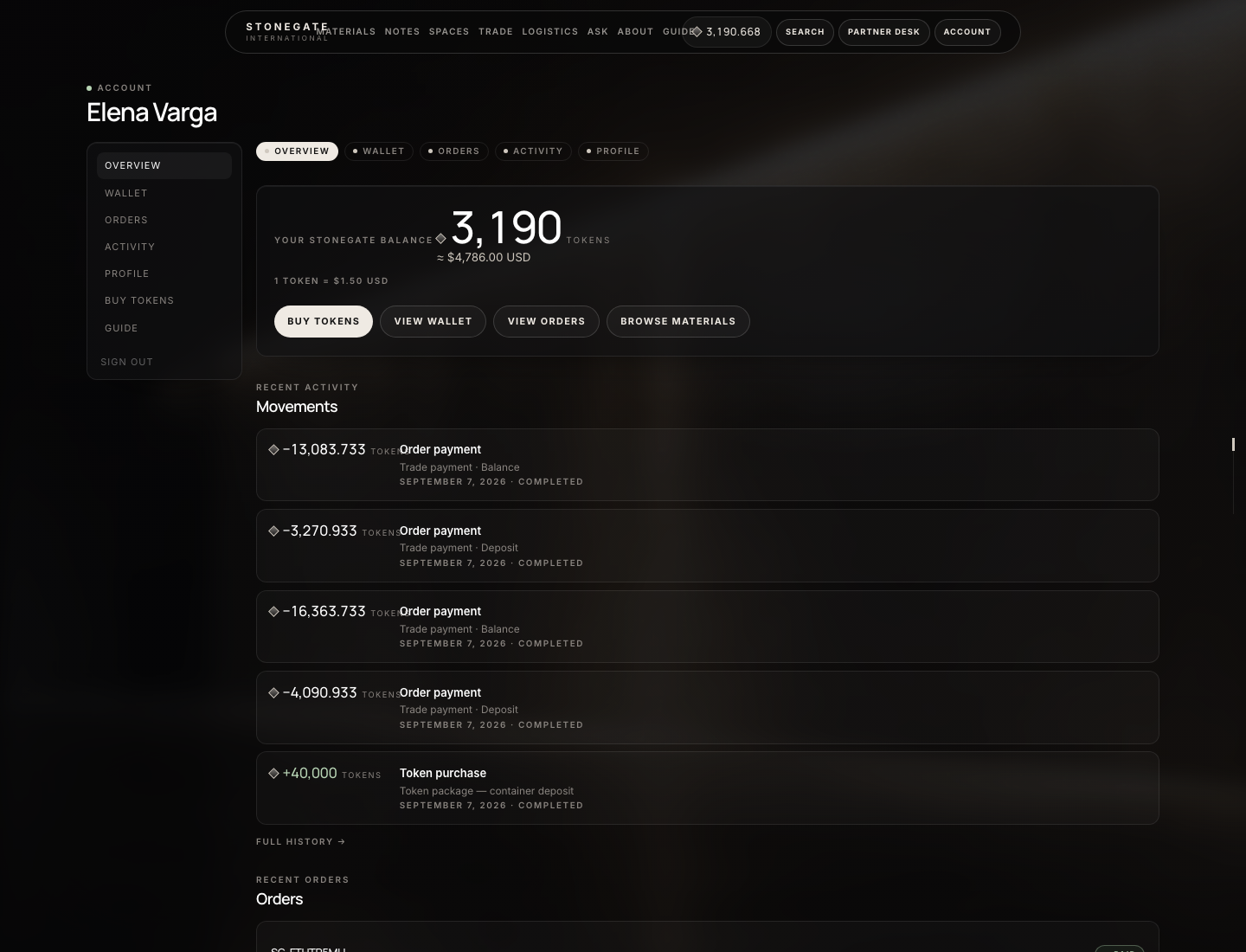
What the numbers mark
- Live Token balance
- Wallet, orders, activity
- Credits and spends
Admin
Turn the desk on so a real file can move
- Mail. Admin → Email → Mail SMTP. Without this, Mark in work cannot email the mill.
- Card payments. Admin → Payments → Gateways. Stripe (and any other rails you use) must be live or the deposit Pay button fails.
- Crypto. Admin → Payments → Crypto. HD wallet mnemonic once (Wallet tab). Then USDT / crypto shows on Buy Tokens and cart checkout. Scheduler must run every minute.
- Tokens. Admin → Payments → Tokens. Set USD cents per token (150 = $1.50), packages, and whether bank transfer is allowed.
- Deposit split. Admin → Trade → Settings. Deposit rate 0.2 and balance 0.8 means 20% due on accept, 80% after.
- Ops inbox. The default operations address is the
STONEGATE_OPS_EMAILenv (trade@…). You can override it on each Mark in work form. - Catalog. Admin → Shop → Products. A material must exist before anyone can Submit RFQ.
- Company. Approve the buying company and assign their user — see Administration.