
04 · Orient
Customers
Account, materials, samples, Tokens, and tracking.
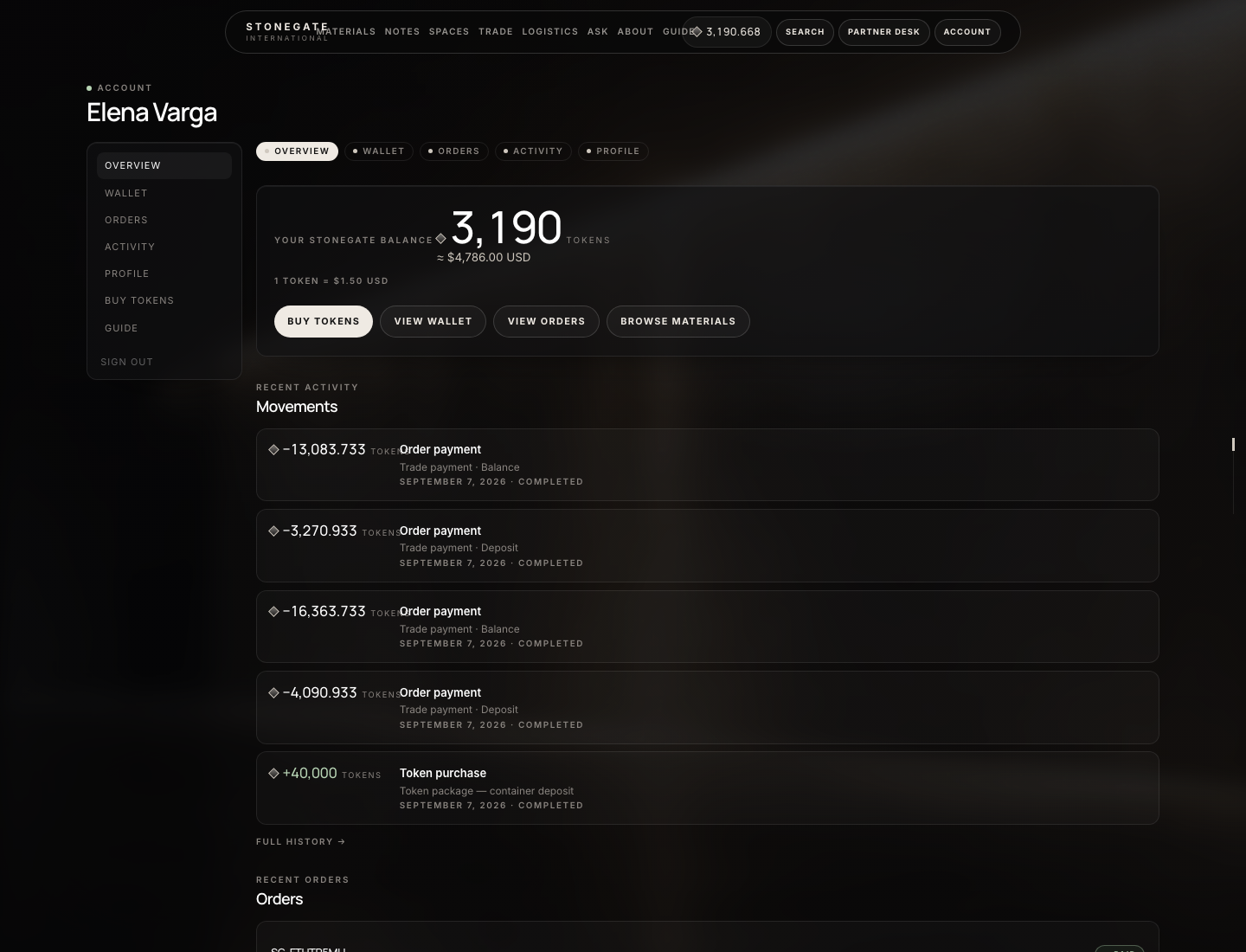
What the numbers mark
- Token balance and USD equivalent
- Buy Tokens
- Wallet, Orders, Activity
Customer
After you create an account
- Header → Sign in → Create account. You become a customer. Verify email if the site asks. Forgot password is on the login page.
- Account — overview of recent files on this user.
- Account → Wallet — Token balance. Opening it creates the wallet at zero. Empty until you buy or an admin credits you.
- Buy Tokens — packages or custom amount; card, crypto, or bank. Credit lands only after payment is verified (bank waits for admin Confirm bank).
- Account → Orders — samples and cart checkouts. A trade lot appears here only if it is linked to your user; company lots are meant to live on Partner Desk.
- Account → Activity — every wallet credit and debit. Profile is name, email, password.
Materials, samples, RFQs
- Header → Materials. Open a stone. Finish / tone controls on the lot do not place an order by themselves.
- Sample — block “Ship a sample to the office”. Guests: Create account or Sign in (you return to this material). Signed-in: name, work email, company, city / jobsite, notes. The button shows the sample Token price (set in Admin → Payments → Tokens → Sample tokens). Submit debits the wallet immediately. Confirmation is email + Account → Orders. Not enough balance: Buy Tokens, then submit again. Nothing is reserved in the mill.
- Trade quote — Request trade quote. Required: name, email, quantity sqft. Also company, project, destination city, state, ZIP, phone. Delivery Door or Port (port: who handles import). Overweight loads need a permit file. Notes / drawings. Submit RFQ — you do not pay. File is an RFQ. With Partner Access it also lists under Partner Desk → RFQs. Without it, StoneGate still receives the request; you cannot Accept a quote until you are assigned to an approved company.
- Cart — add to cart → Checkout. Token checkout must be signed in. Card / crypto starts as
pendinguntil paid. These files are Account → Orders, not desk lots.
Orders & tracking
- Account → Orders — samples and cart files on this user. Open a row for lines, shop status (
pending→confirmed→processing→ …), and payment. - The confirmation email has a public tracking link (
/order/…). That page shows the tracking number / URL the desk typed on Admin → Shop → Orders → Order Status (typically when setting shipped or in_transit). It is not Partner Desk shipmentSHP-…. - Trade lots after you are a partner: Partner Desk → Orders. Language there is fulfillment (deposit due, allocated, in transit, delivered) plus a payment schedule. Track shipment on the order opens the timeline the desk stamps. You cannot Update status.
- A trade
SG-…may also appear under Account → Orders because it is linked to your user. Work it on the desk anyway — that is where Pay and documents live.
Tokens & payments
- 1 Token = $1.50 USD. Open Account → Wallet to see the balance (creates a zero wallet if none). Header chip is the same number.
- Buy credit on Buy Tokens — not on the Wallet page. Packages or custom amount; card, USDT / crypto, or bank. Card / crypto credit when verified. Crypto: pick coin + network on the StoneGate invoice, send the exact amount. Bank stays pending until admin Confirm bank.
- Spend only on: sample submit, cart Token checkout, or a trade installment Pay with Tokens. You never type an amount on Wallet to pay a file.
- Failed pay leaves the wallet and the installment unchanged. Short wallet on a trade pay redirects to Buy Tokens; come back to the order and pay again. Full buy / refund path is in Tokens.
Become a partner
- Create a customer account first (so there is a User ID in Wallets after you open Wallet).
- Open Account → Wallet once.
- Header → Partner Access → apply form (Company, Name, Email, Role, volume, website, U.S. delivery, Message) → Submit application. That creates a pending company and a contact inquiry. Partner Desk does not appear yet.
- Wait until StoneGate sets the company to
approvedand Assign user (they need your User ID from Wallets). Sign out and in. Then Partner Desk is in the header. - If you applied and still only see Account: the application is pending, rejected, or the company is suspended. Email the desk. Do not submit a second application expecting an instant desk.