
08 · Desk & mills
Administration
What each admin screen is for, what is safe, and what cannot be undone.
- Daily board
- Approve a company & assign a user
- Quote, then Mark in work
- Revise, extend, documents
- Settings that must be on
- Crypto processor
- How delivered prices are calculated
- Safe vs destructive
- Tokens, payments, cancel, refund
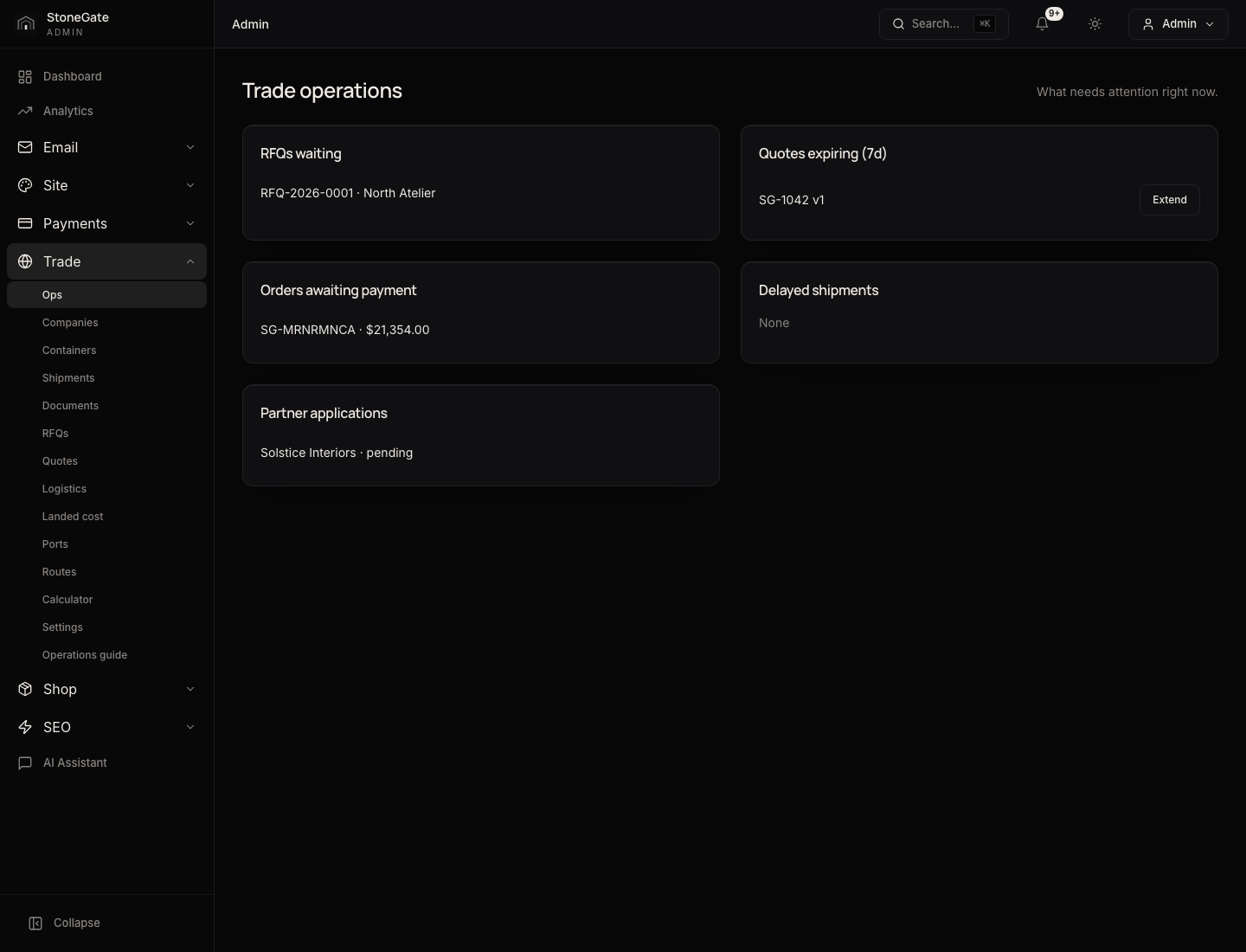
What the numbers mark
- RFQs waiting — open and quote
- Quotes expiring — Extend
- Orders awaiting payment
- Partner applications to approve
Daily board
Open Trade → Ops. Work the five cards in this order unless a shipment is already late:
- Partner applications — click the company name. That is Manage. Approve and assign a user before quoting them, or they cannot Accept. See the recipe below.
- RFQs waiting — click the
RFQ-…number. Draft quote (header), check unit / freight / delivered total / deposit, then Send quote. Sending reserves stock. - Quotes expiring (7d) — Extend on the row, or open the quote → Issue revision → Create next version → Send quote.
- Orders awaiting payment — opens Admin → Shop → Orders on that
SG-…file. You cannot pay for them. Chase the partner. Mark in work only after the deposit is in, unless you are briefing a mill early on purpose. - Delayed shipments — opens Trade → Shipments. Choose the next status + optional note → Update status.
Ops is not a second order list. Full RFQ / quote / company / container lists live under Trade. Shop files (samples, cart) live under Shop → Orders.
Admin
Open Partner Desk for a company
- They register on the site (header Sign in → Create account). Ask them to open Account → Wallet once so a wallet row exists for the ID search.
- They apply on Partner Access (Partner Program): Company, Name, Email, Role, volume, website, U.S. delivery, Message → Submit application. That creates a pending company and a contact inquiry. It does not open the desk.
- Admin: Trade → Ops → Partner applications, or Trade → Companies. Click the company name.
- Status →
approved(also used:pending,review,rejected,suspended). Set tier if you use discounts (standard0%,premium3%,vip6%,customuses Custom discount 0–1). Save. - Find their User ID: Payments → Tokens → Wallets, search the email. The ID column is the number Assign user wants — not the Token balance.
- Back on the company, Users card: paste User ID, pick desk role, Assign user. Assigning sets their login role to
partner. - Desk role for a solo contact who must accept and pay:
company_admin.buyercan accept quotes but does not see Pay with Tokens / Card.financecan pay and accept.project_managerandviewercannot accept or pay. - They sign out and in if the header still hides Partner Desk. Company must stay
approved.suspendedredirects them to Partner Access.rejectedis a dead application unless you change it.

What the numbers mark
- What happens next on the file
- Shop timeline and trade fulfillment
- Mark in work & send — mill brief
Admin
Quote the RFQ, then mark the order in work
- Trade → RFQs (or Ops → RFQs waiting) → open the file → header Draft quote.
- On the quote: check unit, freight, duties, handling, delivered total, deposit / balance (from Trade → Settings). Landed cost and spread stay internal. Partners never see factory cost.
- Send quote (only while status is
draft). The partner is notified. Stock is reserved. Partners cannot accept a draft. - Wait until they accept (order
SG-…) and the deposit is paid. Ops lists the order under unpaid until then. - Shop → Orders → that
SG-…file → card In work & partner emails: Operations email (StoneGate inbox), Partner / mill email (factory — change it if the company email is the buyer), optional note. Leave Email customer and Email operations & partner checked. - Mark in work & send. Shop status becomes
processing. That is the mill handoff. Then containers — see Logistics.
If the flash says “No ops emails sent — check addresses”, the stamp still happened. Fix Email → Mail SMTP and the two addresses, then send again from the same card.
Revise, extend, documents
- Expiring quotes — Trade → Ops → Extend on that row, or open the quote. Partners see “contact the trade desk” on expired files; they cannot accept them.
- Wrong price / freight / notes — quote page, card Issue revision: Unit price (blank keeps current), Freight, Duties, Notes → Create next version. Then Send quote on the new version. The partner must accept the current sent file, not a superseded one.
- Confirm freight — when a carrier booking replaces the estimate. Confirmed freight + required reason → Confirm freight. Audited on the quote.
- Manual override — freight / duties / other / customer total + reason. Use sparingly; it writes an audit log. Partners see the customer total, never landed cost.
- Documents — Trade → Documents → Upload. Title; type (
invoice,quote_pdf,packing_list,technical_sheet,certificate,inspection,shipping,bill_of_lading,contract,other); visibilitypartner(desk can download),admin(staff only), orpublic.documentable_typee.g.App\Models\Order. Record ID is the numeric order id from the admin order URL/admin/orders/{id}— notSG-…. Optional partner company ID. File required → Upload. They appear on Partner Desk → Documents and on the order.
Settings that must be on
- Email → Mail SMTP — without a working sender, Mark in work stamps the file but nobody is mailed.
- Payments → Gateways — Stripe (and any other rails) for card deposits and Token Stripe purchases. A missing gateway makes Card fail with a flash error; the installment stays
due. - Payments → Crypto — HD unique addresses (default). Generate or import the mnemonic once on the Wallet tab, enable the processor, leave Binance mode off unless you actually have deposit API keys. Then USDT / crypto appears on Buy Tokens and cart checkout. Scheduler must run
crypto:watch-paymentsevery minute or invoices never confirm. - Payments → Tokens — USD cents per token (150 = $1.50), Sample tokens, min / max purchase, bank-transfer checkbox and instructions, packages. Buttons on that page: Wallets, Ledger, Purchases.
- Trade → Settings — Deposit rate 0.2 and Balance rate 0.8 means 20% due on accept, 80% after the deposit clears. Also wholesale band, landed / partner floor / client quote defaults, payload kg, legal limit kg (overweight permit on RFQs).
- Trade → Landed cost — Default incoterm, margin, handling commission % (loading / unloading / extra delivery labor on the product quote), shipping provider, HTS, cost rules. See How delivered prices are calculated.
- Shop → Products — a sellable material must exist before anyone can Submit RFQ. Empty catalog = empty desk.
- Ops inbox default is
STONEGATE_OPS_EMAIL. Override it on each Mark in work form if a different mill should receive this lot.
Admin
Turn on StoneGate crypto checkout
- On production:
php artisan migrate --force. That seeds STONEGATE PAYMENTS, HD unique mode, and the coin/network list. It does not create the mnemonic (that would hide the 12 words from you). - Open Payments → Crypto. Brand should read STONEGATE PAYMENTS. Host mode
mainserves invoices at/pay/invoice/…on this shop. - Wallet tab: leave HD unique addresses selected. Do not switch to Binance deposit API unless you have Binance read keys and want fixed deposit addresses. The HD wallet does not call Binance.
- Generate a new mnemonic (or paste an existing 12-word phrase) → Save. Copy the words offline immediately — shown once. Same seed covers Tron, Ethereum/BSC, and Bitcoin.
- Optional keys: TronGrid and Etherscan raise watcher rate limits. Public RPCs work without them. Public price feeds (not the Binance account API) convert USD → coin amount.
- Assets tab: Tron / Ethereum / BSC / Bitcoin plus USDT (TRC/ERC/BEP), TRX, ETH, BNB, BTC. A coin only appears on the invoice if both the network and the asset are on.
- Cron must run
php artisan schedule:runevery minute socrypto:watch-paymentsconfirms inbound transfers. Without it, the customer can pay and Tokens never credit. - Smoke test: Buy Tokens → USDT / crypto → pick USDT TRC-20 → send a small amount → wait for confirmations → wallet credit. Withdraw from Payments → Crypto → Open wallet to a treasury address you control.
Never rotate APP_KEY after the mnemonic is stored (it is encrypted with it). Server + DB backups are hot-wallet material. BTC withdraw destinations must be bc1.
How delivered prices are calculated
The product page quote (and the RFQ snapshot) is built by the landed-cost engine. Partners never see factory cost or margin. Tokens on the quote are USD ÷ cents-per-token from Payments → Tokens.
Formula the customer sees: Product + Shipping + Import & customs + US delivery + Loading/unloading handling = Estimated delivered price. Extra Incoterm costs the buyer pays themselves (if any) sit under Estimated buyer-paid costs and are not in the seller total.
- Where to change it — Trade → Landed cost (hub: Trade → Trade & Logistics → Pricing & logistics). Save commerce settings. Probe a quote on Trade → Trade calculator before you send a real file.
- Product — customer unit from product price tiers / Partner negotiated price, × packaging-snapped qty (crates/boxes). Per-product factory cost and margin: Shop → Products → logistics card. Default margin (0–1) on Landed cost is the fallback when a product has no customer unit.
- Shipping (ocean / origin / export / insurance) — provider from Landed cost → Shipping provider.
auto: Freightos for ocean (public calculator = ESTIMATED min–max; live booking needs Freightos Custom Site key), EasyPost for parcel samples, inland/drayage/LTL/FTL from the freight tables on that same page. Missing or failed API falls back to the table and stays estimated. Test buttons are on Landed cost. CLI:php artisan commerce:probe-freightos. - Import & customs — HTS table on Landed cost (or USITC if Duty provider is
usitc). Product override: Shop → Products → duty override %. Brokerage and similar sit in Cost rules, categoryimport_customs. - US delivery — destination port handling + inland/drayage + special handling (liftgate, residential, appointment) from Cost rules and inland zone tables. Door vs Port on the material page changes which legs are included.
- Loading, unloading & handling — the percent on Landed cost: Handling commission %, Handling basis, Handling line label. 0 hides the line. Default basis
logistics= seller freight + cost-rule fees (not product, not duty). Other bases: freight only, product only, product + freight, or the delivered subtotal before this line. The % is applied to that basis and added as its own quote line. Same amount is rolled into quoteFees / handlingwhen you Draft quote. - Cost rules — same Landed cost page, lower card. Flat / per crate / per container / percent of goods or freight. Fuel, insurance, origin handling, dest handling, liftgate live here. Provider legs (Freightos/EasyPost) are not edited in this table.
- Incoterm / importer — Default incoterm on Landed cost. Port quotes can set “I’ll handle import” so duty and some fees move to buyer-paid extras. Houston-landed products skip ocean and duty.
- Draft quote re-runs this engine into freight / duties / other. Manual override on the quote (freight, duties, other, customer total + reason) replaces the estimate for that version only. Confirm freight when a carrier booking replaces the planning number.
API keys stay on the server (EasyPost, Freightos, Google geocoding). Never shown on the storefront. Address provider is passthrough unless you set Nominatim or Google.
Safe vs destructive
- Safe: viewing Ops, extending a quote, downloading documents, searching orders, Print on a quote, reading Partner Desk as admin.
- High impact (reversible only with more clicks): Send quote (reserves stock — decline or a new version to unwind), Mark in work (emails mill; you can send again), Update shipment status (partner sees the stamp immediately), Confirm bank (credits the wallet), Record adjustment on a wallet.
- Destructive: company status
suspendedorrejected(desk disappears), Cancel order on a trade file (inventory released; Tokens return if they were spent; card money is not returned here), Reverse to wallet on a succeeded Token purchase (debits those Tokens back — only if they are still in the wallet), deleting catalog rows. Confirm before you click. - Shop Token refund without killing the trade file: header Refund tokens + reason on that admin order. Only when payment method is Tokens and status is not already refunded.
Tokens, payments, cancel, refund
- Payments → Tokens — rate and packages. Wallets — search email, ID column is User ID. Open the email → Tokens field (
+100or-25) + reason (+ optional reference) → Record adjustment. Always writes a ledger row. Will not store a negative balance. - Purchases — bank rows that are still open: Confirm bank (credits the wallet). Succeeded rows: reason + Reverse to wallet (debits the credited Tokens). Do not Confirm bank on a Stripe or crypto row.
- Ledger — every credit and debit. Use this when a partner says the balance is wrong.
- Trade cancel: admin order, card Cancel trade order, reason, button Cancel order. Confirm dialog. Inventory releases. Token spends on this file return. Stripe / card refunds are done in the gateway, not here.
- Activity on the order: admin notes, Send Email, shop Order Status (Save & Send can notify the customer and, for shipped / in_transit, take tracking number and URL). Partners see a filtered timeline, not admin notes.